Hubs & Controllers - Guest post
Why Your Smart Home Devices Keep Going Offline (and How to Fix It Step by Step)
Kitek Sood7 min read
You say "Alexa, turn on the light" and nothing happens. The app shows the bulb as offline.
Most of the time the bulb is fine. The problem is the Wi-Fi.
At home I have a Mi TV, smart bulbs and Alexa. Once or twice, when the Wi-Fi had a problem, the bulbs did not connect, and then I could not switch the lights on or off with Alexa either.
So here are the simple fixes that bring them back. You do not need any technical knowledge. Start from step 1 and stop as soon as your device is back.
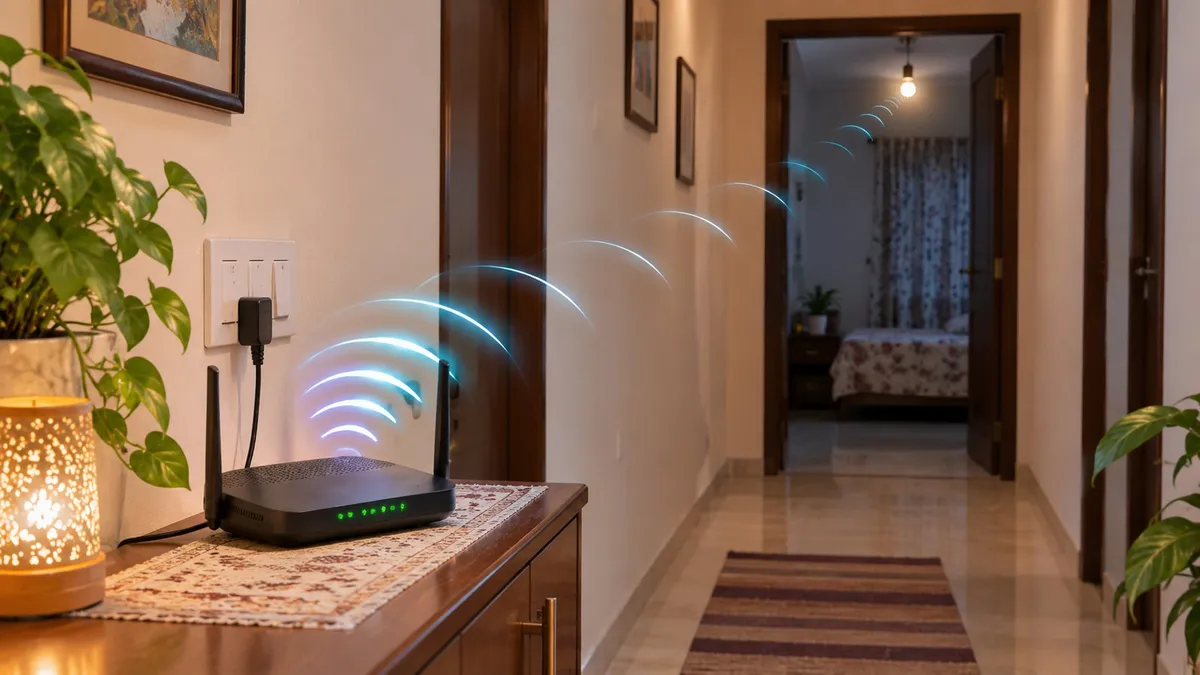
Wi-Fi gets weaker as it travels to the far rooms of a house (illustration).
First, why do smart devices go offline so much?
Smart bulbs, plugs and cameras use small, cheap Wi-Fi chips. Most of them work only on the 2.4GHz Wi-Fi band, not on 5GHz. LIFX says the same about its own bulbs.
2.4GHz travels further and passes through walls better. These devices send very little data, so they do not need the speed of 5GHz, and BGR points out that adding 5GHz would also make the chip costlier.
My own bulbs only connect on 2.4GHz. Once, while adding a new bulb, the setup kept failing because my phone was on the 5GHz band. I connected it on 2.4GHz and it worked straight away.
Your phone and laptop handle a weak signal or a router restart far better than a small bulb does. That is why the bulb shows offline while your phone still works fine.
| Wi-Fi band | Range and walls | Speed | Devices that use it |
|---|---|---|---|
| 2.4GHz | Reaches further and passes through walls better | Slower and more crowded, but plenty for small data | Smart bulbs, smart plugs, most cameras |
| 5GHz | Shorter range, weaker through walls | Faster | Phones, laptops, TVs. Most smart bulbs cannot join it |
2.4GHz
- Range and walls
- Reaches further and passes through walls better
- Speed
- Slower and more crowded, but plenty for small data
- Devices that use it
- Smart bulbs, smart plugs, most cameras
5GHz
- Range and walls
- Shorter range, weaker through walls
- Speed
- Faster
- Devices that use it
- Phones, laptops, TVs. Most smart bulbs cannot join it
Step 1: Check the device is on the right Wi-Fi
This is the first thing I check, and the first thing I tell anyone who asks me for help. Open the bulb's app or the Alexa app and see which Wi-Fi network the device is connected to.
Then ask yourself: did anything change? Once I changed the Wi-Fi password and some bulbs simply never reconnected. I had to add all of them again.
The bulb keeps trying the old password, so it never comes back by itself. The same thing happens when Jio or Airtel gives you a new router with a new Wi-Fi name.
If the device is a smart plug that will not join at all, our guide to fixing a smart plug that is not connecting to Wi-Fi covers the pairing side in more detail.
Step 2: Restart the router, then the device
I pull out the router's plug, put it back after about 30 seconds, and wait. Only then do I check the bulb and Alexa.
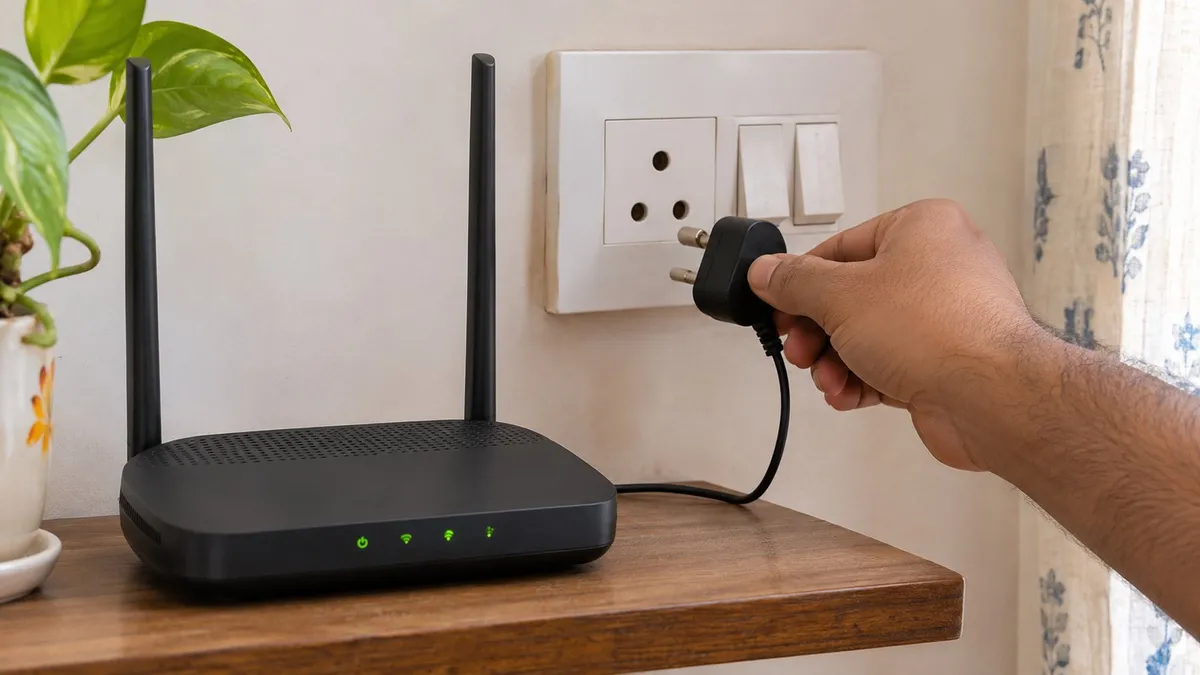
Unplug the router, wait about 30 seconds, then plug it back in (illustration).
Give the router 2 to 3 minutes, until the internet light is steady. Then switch the device off and on. For a bulb, just turn the wall switch off and on. For a smart plug, take it out of the socket and put it back.
It sounds too simple, but it fixes a lot of small problems, so always try it before anything else.
Step 3: Bring the device closer to the router
If it still does not connect, take the device near the router and test it there.
My router sits in the hall and the bulbs are spread across other rooms. In the farthest room the connection sometimes gets a little weak, though it rarely causes a real problem.
A smart plug is easy to test: put it in a socket in the same room as the router. If it works there but not in its usual place, the problem is the signal, not the plug. For a bulb, try it in a lamp near the router.
If the signal is the problem:
- Keep the router a bit high and near the middle of the house, not on the floor or inside a cupboard.
- Keep it away from the microwave, which also works in the 2.4GHz range.
- For a big house or a duplex, a mesh Wi-Fi system or an extender helps the far rooms.
Step 4: Disconnect and connect it again
Sometimes removing the device from the Wi-Fi and adding it again is all it needs.
In most apps you can remove the device and add it back. For a bulb this usually means a reset: you switch it off and on a few times until it blinks. Check the box or the manual for the exact count. After that, say "Alexa, discover devices" so Alexa finds it again.
Do this after steps 1 to 3, not before. It takes time, and there is no point repeating it if the real problem is the router.
Step 5: Give 2.4GHz its own Wi-Fi name
Many new routers show one Wi-Fi name for both 2.4GHz and 5GHz and decide by themselves which band each device uses. This is called Smart Connect or Band Steering.
It is good for phones, but it can confuse a bulb, mostly during setup. The fix is to give each band its own name, for example:
- HomeWiFi for 5GHz (phones, laptop, TV)
- HomeWiFi-2G for 2.4GHz (bulbs, plugs, cameras)
Open your router settings or the router app, look for Smart Connect or Band Steering, turn it off and give 2.4GHz a different name. The router's address and login are usually printed on a sticker under the router.
Step 6: Too many devices on one router
At home the phones, the TV, the bulbs and Alexa all share one router. With everything connected the internet sometimes slows down, but the bulbs rarely drop off.
So more devices do not always mean offline bulbs. But an old router, or the basic one that came free with your connection, can start dropping devices. In that case a better router fixes a lot of "random" disconnects.
If you can, connect the TV with a LAN cable. It takes the heaviest user off the Wi-Fi and frees it up for everything else.
Step 7: Power cuts
After a power cut, devices sometimes go offline too. Even once the router is back on, it takes a while for all of them to reconnect.
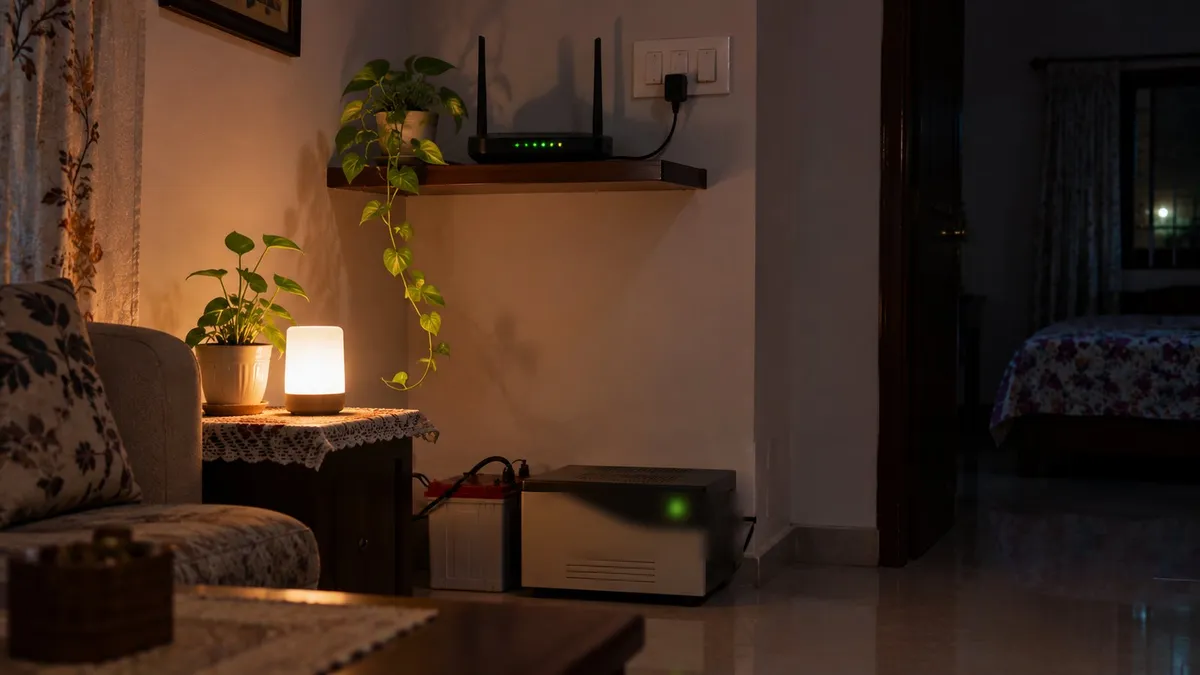
Keeping the router on the inverter line stops it going off in every power cut (illustration).
This is very common in India. When the power comes back, the router takes a minute or two to start, and some bulbs give up trying in that time. Two simple things help:
- Put the router on the inverter line, so it does not go off with every power cut.
- After a long power cut, if a bulb still shows offline, switch it off and on once.
For the bigger picture, including which smart devices are worth keeping on backup power, see this guide to keeping a smart home running through power cuts.
Step 8: When Wi-Fi is fine but Alexa still cannot control it
Sometimes the Wi-Fi is working and Alexa still cannot control the bulb. Then I switch the bulb off and on at the wall, or I restart the Alexa speaker.
If that does not work:
- Update the bulb's app and the Alexa app.
- Check that the bulb brand's skill is still enabled in the Alexa app. If it got disabled, Alexa cannot talk to the bulb even when the bulb is online.
- Sometimes the bulb company's server is down. If lots of people report the same problem on the same day, it is not your Wi-Fi, and you can only wait.
- Give devices clear names like "Bedroom Light" instead of "Bulb 1". Alexa understands the command better.
Quick checklist
Smart device offline? Try these in order
- Is the device on the right Wi-Fi name and password?A changed password or a new router means adding it again.
- Restart the router, wait 2 to 3 minutes, then switch the device off and onFixes most small problems.
- Take the device closer to the router and test itWorks near the router? The signal is the problem.
- Remove the device from the app and add it againReset the bulb first if needed.
- Give 2.4GHz its own Wi-Fi nameTurn off Smart Connect or Band Steering.
- Check whether the router is too old for your number of devices
- Put the router on the inverter line
- Update the apps and check the Alexa skill is enabled
Sources: LIFX on smart home Wi-Fi setup, BGR on why smart devices still use 2.4GHz and Android Authority on Alexa not turning on lights.
Quick answers
FAQ: smart home devices going offline
Why can't my smart bulb see my 5GHz Wi-Fi?
Most smart bulbs and plugs only work on the 2.4GHz band. Connect them to 2.4GHz. If your router shows only one Wi-Fi name for both bands, turn off Smart Connect or Band Steering and give 2.4GHz its own name.
Do I need to reset the bulb every time it goes offline?
No. Restart the router and then the bulb first. Reset the bulb only if that does not work, or after you change the Wi-Fi name or password.
Will a new router fix smart devices going offline?
It can, if your router is old or the basic one that came free with your connection. Try the free fixes first: the right Wi-Fi name, a router restart, moving the device closer and a separate 2.4GHz name.
Alexa says the device is unresponsive. What should I do?
Switch the device off and on, check that it shows online in its own app, and check that the brand's skill is still enabled in the Alexa app. Then say "Alexa, discover devices".
Why do my smart devices go offline after a power cut?
When power returns, the router takes a minute or two to start, and some bulbs and plugs give up trying to connect in that time. Put the router on the inverter line so it stays on, and switch a bulb off and on once if it still shows offline.