Hubs & Controllers - Guest post
How to Mount a Tablet on the Wall Without Drilling (and Hide the Charging Cable)
Mike Hayes9 min read
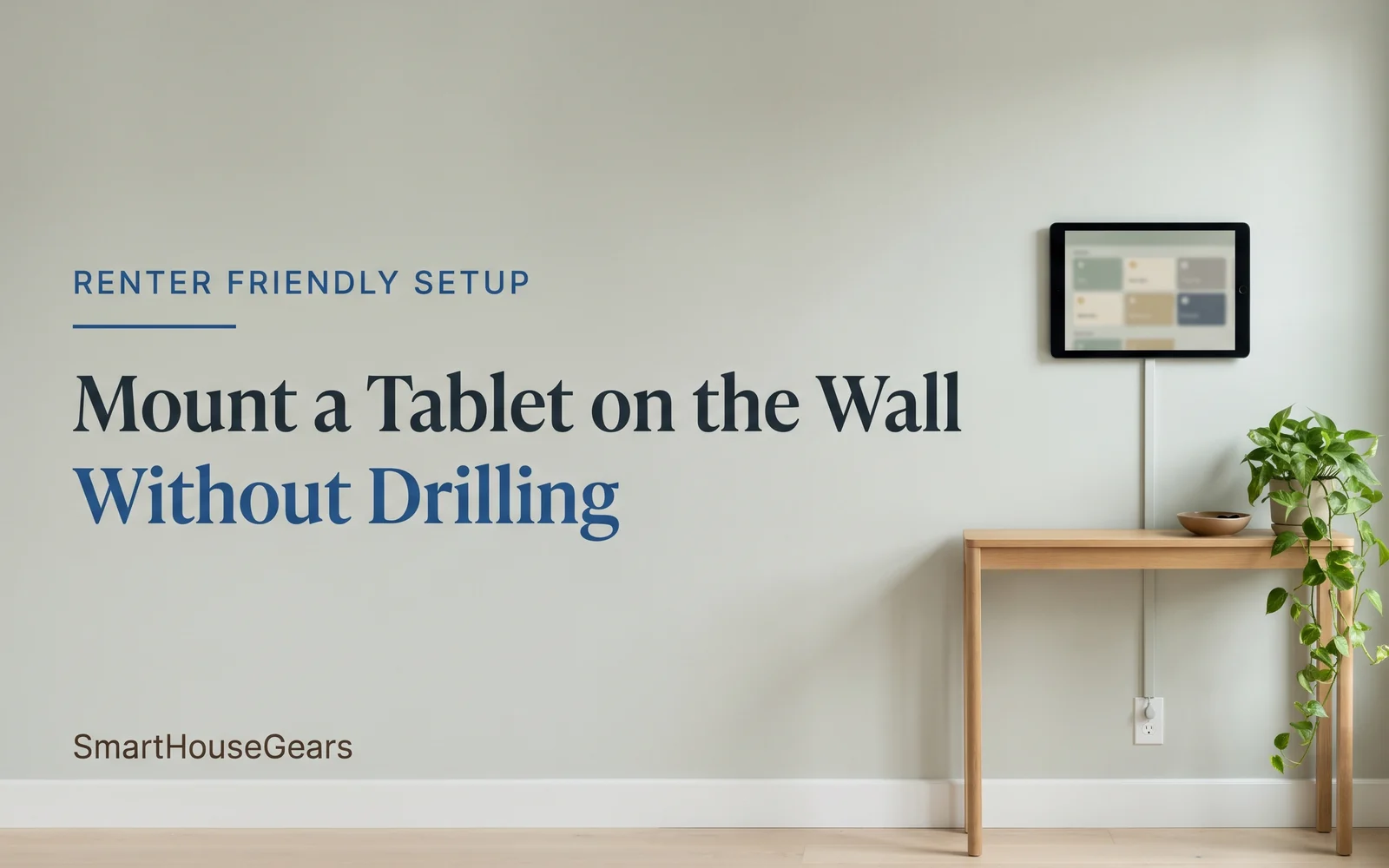
If you want to mount a tablet on the wall without drilling, you have more options than a strip of double-sided tape and some hope.
A tablet is light, usually between 0.75 and 1.5 lb, and the right adhesive strips will hold it for years on a smooth painted wall.
The harder parts are picking a mount that fits your tablet, protecting the paint for when you move out, and getting power to a screen that is on all day without a cable dangling down the wall.
This guide covers all three. It is written for renters and for anyone setting up a smart home dashboard tablet in a hallway or kitchen, which is the most common reason people put a tablet on the wall in the first place.
Why a wall tablet at all?
For most people it is a dashboard. A wall mounted tablet for Home Assistant, or for whatever app runs your hub, gives everyone in the house one fixed place to see the doors, lights, thermostat and cameras without unlocking a phone.
If you have not settled on a hub yet, the wall tablet is usually the screen that sits in front of it, so it is worth reading this guide to Matter smart home hubs before you buy hardware.
Other common uses: a kitchen recipe screen, a wall-mounted music controller, or a check-in kiosk in a small office. The mounting advice is the same for all of them.
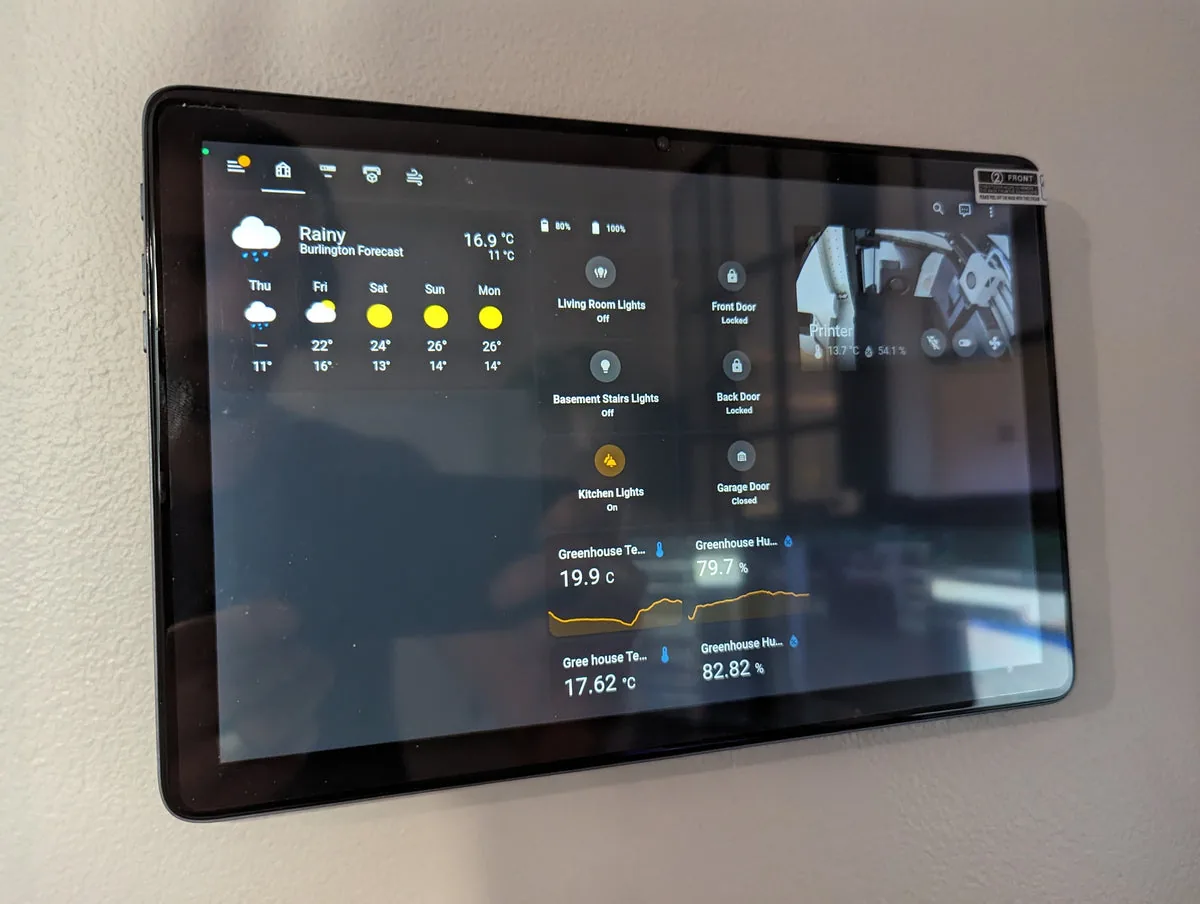
A 10 inch Android tablet on a low-profile, slide-off mount running a Home Assistant dashboard. The tablet sits close enough to the wall that the mount is hidden behind it.
The three mount types compared
| Mount type | Holds | Best tablet sizes | Wall damage | Best for |
|---|---|---|---|---|
| Adhesive strips only (tablet stuck to the wall or a thin plate) | About 4 lb per large strip pair; 1 to 2 lb in practice once you allow for tugging | 7 to 8 inch, the lightest tablets | None if removed correctly | Very light tablets you rarely take down |
| Low-profile mount on adhesive strips | Same strip ratings, but the load is spread across a wall plate | 7 to 13 inch | None if removed correctly | Renters, dashboards, most people |
| Drilled mount (screws into anchors or a stud) | 10 lb or more with proper drywall anchors; much more into a stud | Any size, including 12.9 to 14 inch | Two small screw holes, easy to patch | Homeowners, busy hallways, kids, permanent installs |
Adhesive strips only (tablet stuck to the wall or a thin plate)
- Holds
- About 4 lb per large strip pair; 1 to 2 lb in practice once you allow for tugging
- Best tablet sizes
- 7 to 8 inch, the lightest tablets
- Wall damage
- None if removed correctly
- Best for
- Very light tablets you rarely take down
Low-profile mount on adhesive strips
- Holds
- Same strip ratings, but the load is spread across a wall plate
- Best tablet sizes
- 7 to 13 inch
- Wall damage
- None if removed correctly
- Best for
- Renters, dashboards, most people
Drilled mount (screws into anchors or a stud)
- Holds
- 10 lb or more with proper drywall anchors; much more into a stud
- Best tablet sizes
- Any size, including 12.9 to 14 inch
- Wall damage
- Two small screw holes, easy to patch
- Best for
- Homeowners, busy hallways, kids, permanent installs
Adhesive strips on their own
Sticking strips directly to the back of a tablet, or to its case, is the cheapest option and the weakest one.
Every time you pull the tablet off to charge it or reboot it, you load the adhesive at an angle it was not designed for. That is how strips let go, usually at 3 a.m.
It is fine for a small 7 or 8 inch tablet that never comes down. For anything you will interact with daily, use a mount.
Low-profile mounts
A low-profile mount is two parts: a wall plate that stays on the wall and a tablet plate or cradle that holds the tablet. The tablet slides up and off the top.
The wall plate can go up with screws or with strips, and because you never pull on the wall plate itself, the adhesive only ever carries the tablet's static weight.
This is the sweet spot for renters. A good one sits only a few millimetres off the wall, so the tablet looks built in, and it leaves a channel behind the tablet for the cable.
Our low-profile flush tablet wall mount at Worm Pop Labs is one example: the tablet sits tight against the wall with the smallest possible gap and slides off the top when you need it.
Sizes: look for a mount made for your exact model, or one with a stated minimum width. Universal mounts often list a minimum width rather than a list of models.
A 7 inch tablet in landscape is about 6.5 inches wide, which is a common minimum. If your tablet is in a case, measure the case, not the tablet.
Drilled mounts
If you own your home, or your lease allows small holes, two screws are the most secure option. A #8 screw in a plastic drywall anchor is plenty for any tablet, and a stud is even better.
Drilled mounts are worth it for large tablets (12.9 inch iPad Pro, 14 inch Android tablets), high-traffic hallways, and homes with kids who will absolutely try to pull the screen off the wall.
Drilling also unlocks the cleanest power setup: a mount with an open center that sits over a recessed electrical box, so the cable disappears straight into the wall. More on that below.
What renters should check before using adhesive on painted walls
Adhesive strips are renter-friendly only if the paint is. Before you stick anything up:
Renter-friendly adhesive checklist
- Read your leaseSome leases ban anything stuck to walls; others treat a few small nail holes as normal wear and tear. Know which one you have before you choose strips or screws.
- Check the paint's ageFresh paint needs time to cure. Strip makers usually say to wait at least 7 days after painting, and longer if the unit was painted just before you moved in.
- Check the finishEggshell, satin and semi-gloss hold adhesive well. Flat or matte paint can be chalky, and the paint may come off with the strip.
- Avoid texture and wallpaperOrange-peel or knockdown texture gives the adhesive only a fraction of the contact area, and wallpaper can peel off. Use screws, or pick another wall.
- Clean with isopropyl alcoholHousehold cleaners leave a film that kills adhesion. Wipe the spot with alcohol and let it dry.
- Do a testStick one strip somewhere hidden, like inside a closet, leave it a few days, and remove it by pulling the tab slowly straight down along the wall.
- Wait before loadingPress each strip firmly for 30 seconds and wait about an hour before hanging the tablet.
How to run and hide USB-C power
A dashboard tablet is on all day, so it needs to be plugged in. Here is how to hide the tablet charging cable without opening a wall.
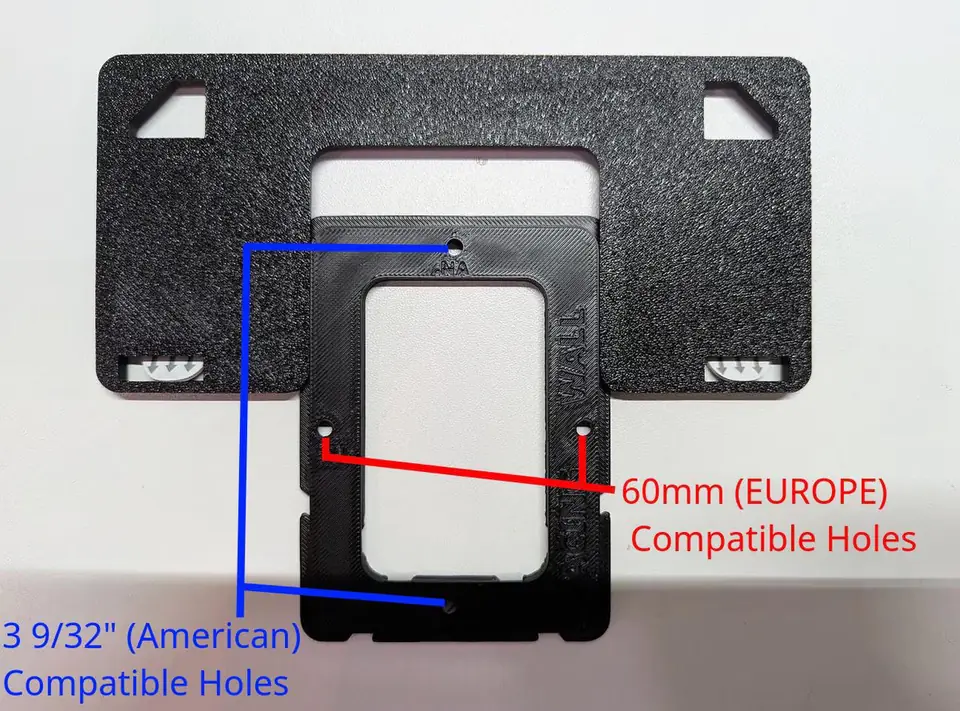
A slide-out wall plate with an open center and hole spacing for a North American electrical box (3 9/32 inch) and a European one (60 mm), so a tablet can be powered straight from a recessed box.
Step 1: Pick the spot by the outlet, not the other way round
Stand where you will use the tablet, then look for the nearest outlet. The best spot is usually directly above an outlet at about eye level, 48 to 60 inches from the floor, so the cable runs in one straight vertical line.
Step 2: Use the right cable and charger
- A right-angle USB-C cable keeps the plug from pushing the tablet off the wall. Check which side your tablet's port is on before you buy one.
- A flat cable sits under a cord cover far more easily than a round one.
- A charger that matches your tablet's normal wattage is enough. A dashboard does not need fast charging, and a lower-wattage charger runs cooler.
- Measure the run and add 6 inches. Spare slack is hard to hide.
Step 3: Route the cable behind the tablet
Plan the cable path before the mount goes up. Low-profile mounts usually leave a gap or channel behind the tablet. Bring the cable up behind the tablet and out of the bottom edge, so nothing shows above or beside the screen.
Step 4: Cover the vertical run
Use an adhesive cord cover (a raceway) from the bottom of the tablet down to the outlet. Buy a paintable one and paint it the wall color, and it disappears from across the room.
It also comes off without damage, using the same slow pull as the strips.
Step 5: Hide the charger
Put the plug behind furniture if you can, or use an outlet cover that hides the charger brick. In a kitchen, a cabinet edge or the backsplash is often a better route than open wall.
Step 6 (homeowners only): Go in-wall, properly
If you want no visible cable at all, the clean way is a recessed outlet or a low-voltage power kit behind the tablet, with a mount that sits over it. Two cautions:
If that is where you are heading, a mount with an open center like our tablet wall mount for kiosk and satellite dashboards fits over a standard box and hides the whole connection.
Tablet battery care when it is always plugged in
This is the part most guides skip. A lithium-ion battery that sits at 100% charge and gets warm, all day, every day, wears out fast and can eventually swell.
A swollen battery can push the screen out of the case. On a wall, you will not notice until it is bad. Three ways to prevent it, best first:
- Use the built-in charge limit. Many recent tablets have one. Samsung Galaxy tablets have a battery protection setting that stops charging at about 80 to 85%, Google's Pixel Tablet has charging optimization, some Lenovo tablets have a battery protection mode, and newer iPads can limit charging to 80% under Battery settings. Look under Settings, then Battery, on your model.
- Automate a smart plug. If your tablet has no charge limit (many budget tablets do not), plug the charger into a smart plug. In Home Assistant, the Companion app or Fully Kiosk Browser reports the battery level as a sensor, and one automation turns the plug on at 30% and off at 80%. It is the most reliable fix for an older or cheaper tablet.
- Keep it cool. Avoid direct sunlight and spots above radiators or heating vents. Turn the screen brightness down or set it to dim at night. Heat is what turns a tired battery into a swollen one.
Check the tablet's edges every couple of months. If the screen starts lifting or there is a gap at the seam, unplug it and replace the battery or the tablet.
Running the whole setup locally, from the hub to the smart plug automation, is also how you avoid subscriptions; our guide to building a smart home with no monthly fees walks through it.
Quick answers
FAQ: mounting a tablet on the wall without drilling
Can I mount a tablet on the wall without drilling at all?
Yes. Put a low-profile mount on adhesive picture-hanging strips on a smooth, cured, painted wall. Tablets weigh 0.75 to 1.5 lb, well inside what large strips are rated for. The mount takes the handling, so the strips only carry the tablet's weight.
How much weight can adhesive strips hold for a tablet?
Large picture-hanging strips are typically rated around 4 lb per pair, but check your package because ratings vary by size and brand. Aim for strips rated at three times the total weight of tablet, case and mount. For most tablets that means three or four pairs.
Will adhesive strips damage my rental's paint?
They usually will not on eggshell, satin or semi-gloss paint, if you remove them by pulling the tab slowly straight down along the wall. They can take paint off flat or very fresh paint. Test one strip in a closet first.
What's the best way to hide the tablet charging cable without opening the wall?
Run a flat, right-angle USB-C cable behind the tablet and out of the bottom edge. Then cover the run down to the outlet with a paintable adhesive cord cover. Painted to match the wall, it is hard to spot.
Is it safe to leave a wall tablet plugged in 24/7?
Yes, with a charge limit. Turn on your tablet's battery protection setting, or use a smart plug automation to keep it between about 30% and 80%. Keep it out of direct sun, and check every few months for signs of swelling.